Credit notes
A credit note says "we owe you this much back" — a discount after the fact, work you didn't end up doing, or a correction. It lowers what a client owes without editing a sent invoice, and it leaves a clear record of why.
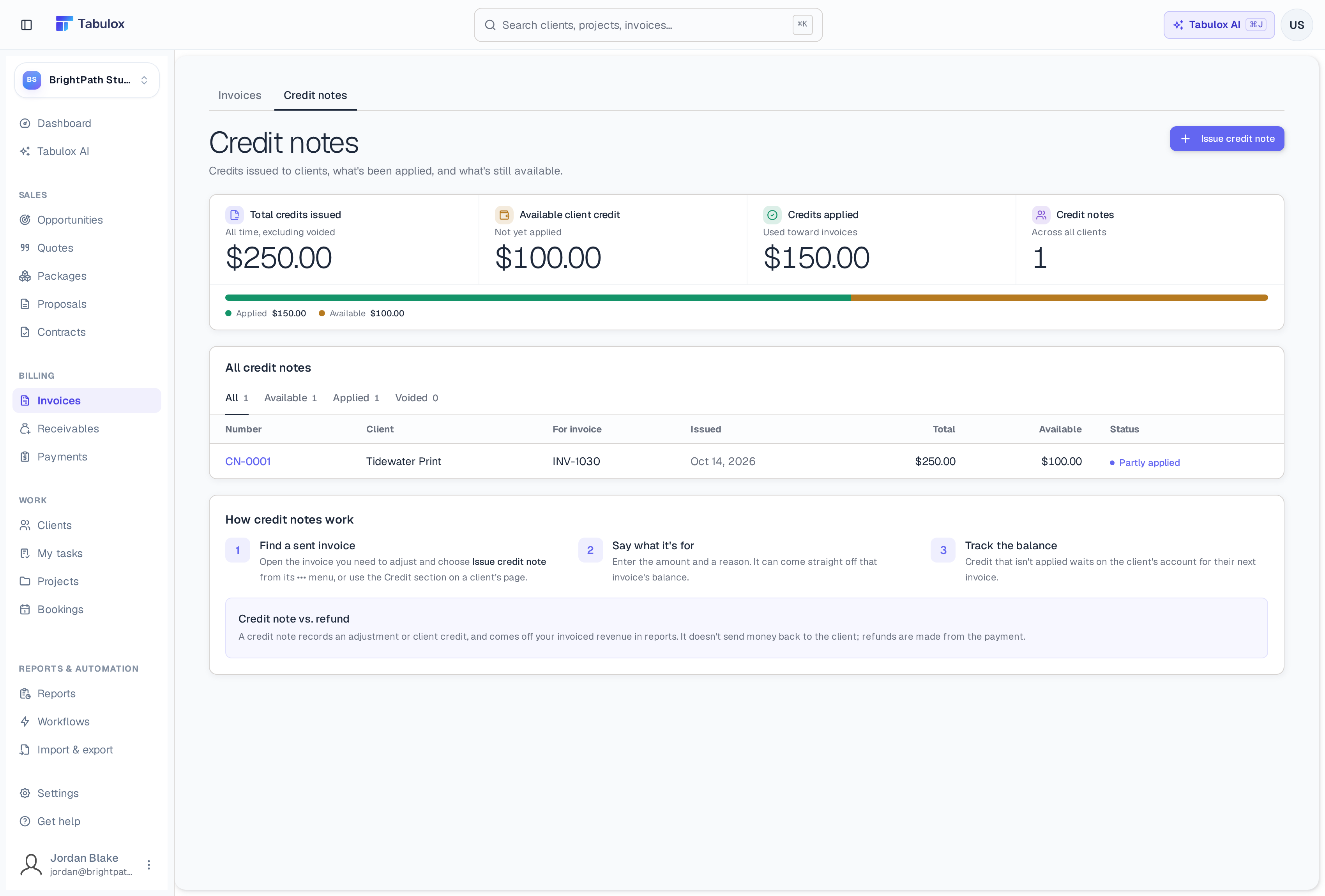
Credit notes is a tab beside Invoices. At the top: Total credits issued, Available client credit (not yet applied), Credits applied (used toward invoices), and how many credit notes there are. The list can be filtered to All, Available, Applied and Voided, and shows each note's number, client, invoice, issue date, total, what's still available, and status (for example Partly applied).
Issuing a credit note
- Start from the invoice or the client
On an invoice, use Issue credit note in its ⋯ menu or the Credit panel. You can also issue one from a client's page, or with Issue credit note on this page.
- Say what it's for
Enter the amount and a reason ("Two pages dropped from the annual report"). Each credit note gets its own number (CN-0001, CN-0002…).
- Apply it, or keep it as credit
Apply it to the invoice straight away to lower what's owed, or leave it on the client's account for a later invoice.
Using a client's credit
Credit that isn't applied waits on the client's account. When that client has an unpaid invoice, its Credit panel says "This client has $100.00 of unused credit" with a button to apply it. Credit can be split across several invoices.
On a credit note's own page you can download its PDF (in your invoice design), Email to client, Apply to an invoice, or Void it. Voiding a credit note — or voiding an invoice it was applied to — gives the credit back.
Credit note vs refund
A credit note doesn't send money back to the client; it lowers what they owe. To return money they've already paid online, refund the payment from the invoice (see Invoices).
In reports, issued credit notes come off what you invoiced, and credit applied never counts as money collected.
When a credit note is applied to an invoice, the client gets the "Credit applied" email with the credit note attached. You can change its wording in Settings → Email templates.